
TradingView serves as a versatile charting platform and an interactive community where enthusiasts can examine financial charts and employ a myriad of tools to uncover potential in various markets like Stocks, Forex, Cryptocurrencies, Futures, and Commodities. Additionally, users of TradingView can link most brokerage accounts to execute trades directly from the platform, capitalizing on opportunities as they surface in real-time.
Info
This exceptional platform is where we showcase our MADALGO Premium indicator collection. Register for a complimentary account on TradingView, and upon subscription on our site, you'll gain immediate access to our tools right from your indicator's directory.
How To Create A Account
To initiate a TradingView account, navigate to TradingView's main page. Tap on "Log in" situated at the upper right corner, followed by "Register" at the window's base. Registration can be done using your social media credentials or an email account.
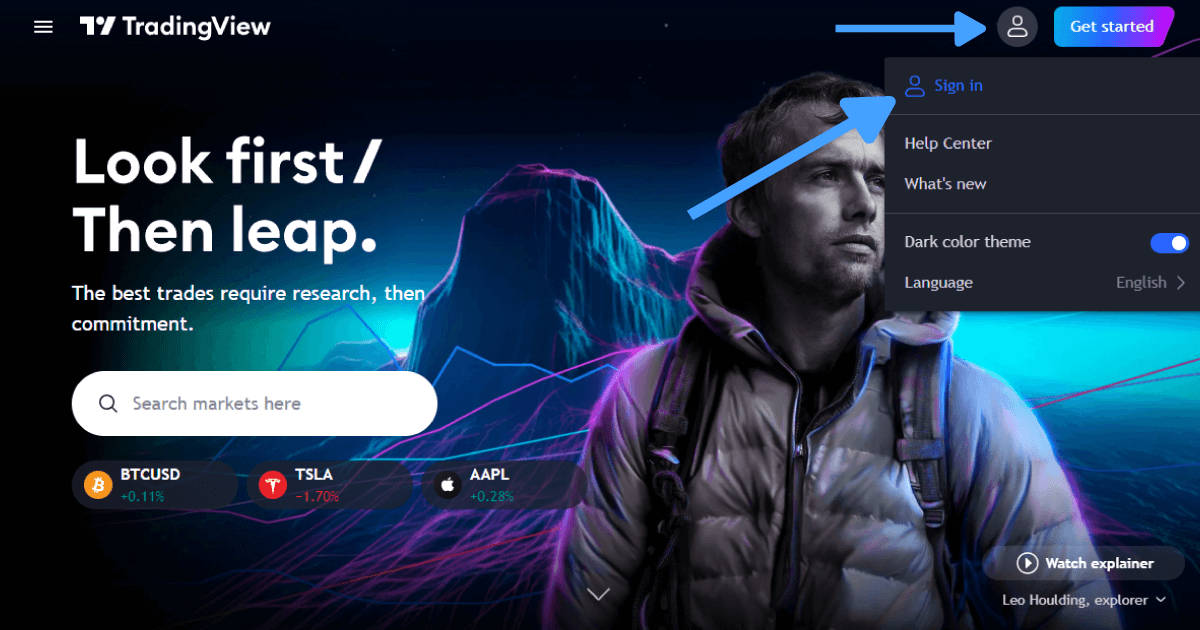
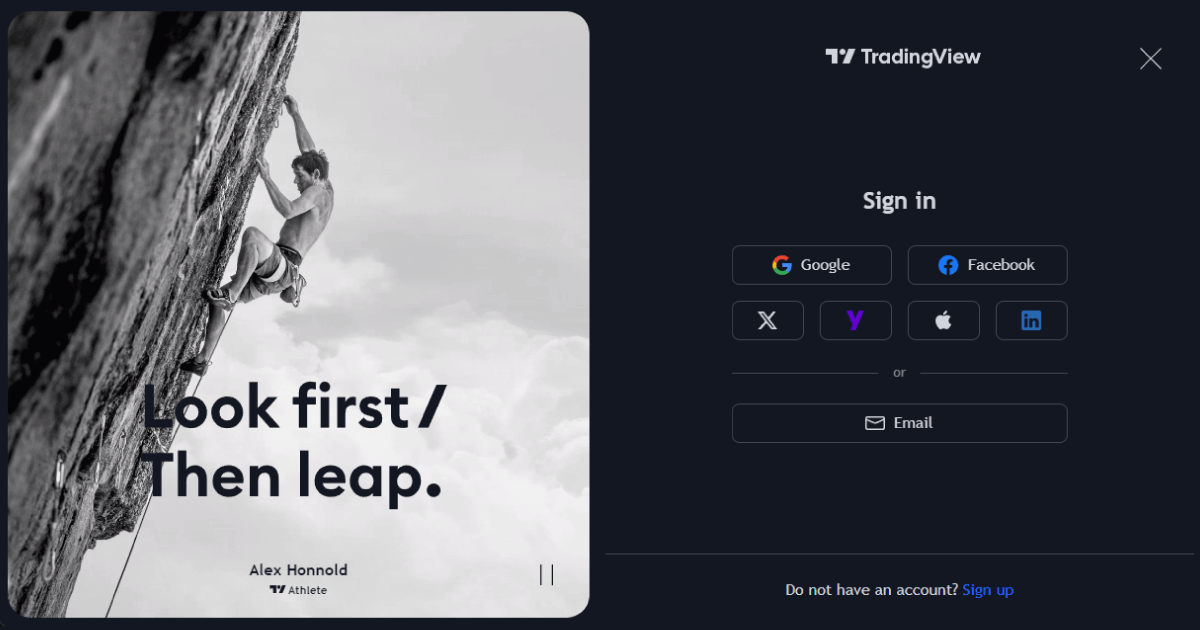
Exploring TradingView Charts
Launching a Chart on TradingView
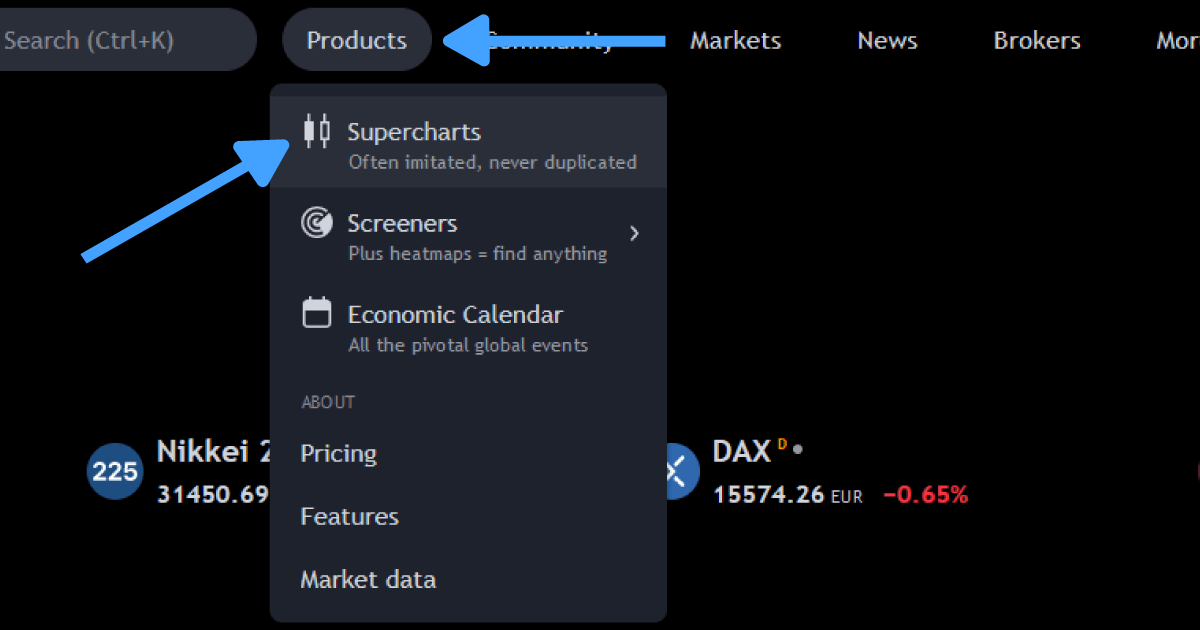
To display a chart on TradingView, select 'Products' positioned at the website's upper left corner after logging in. Then select Supercharts from the dropdown menu
Modifying The Chart Symbol
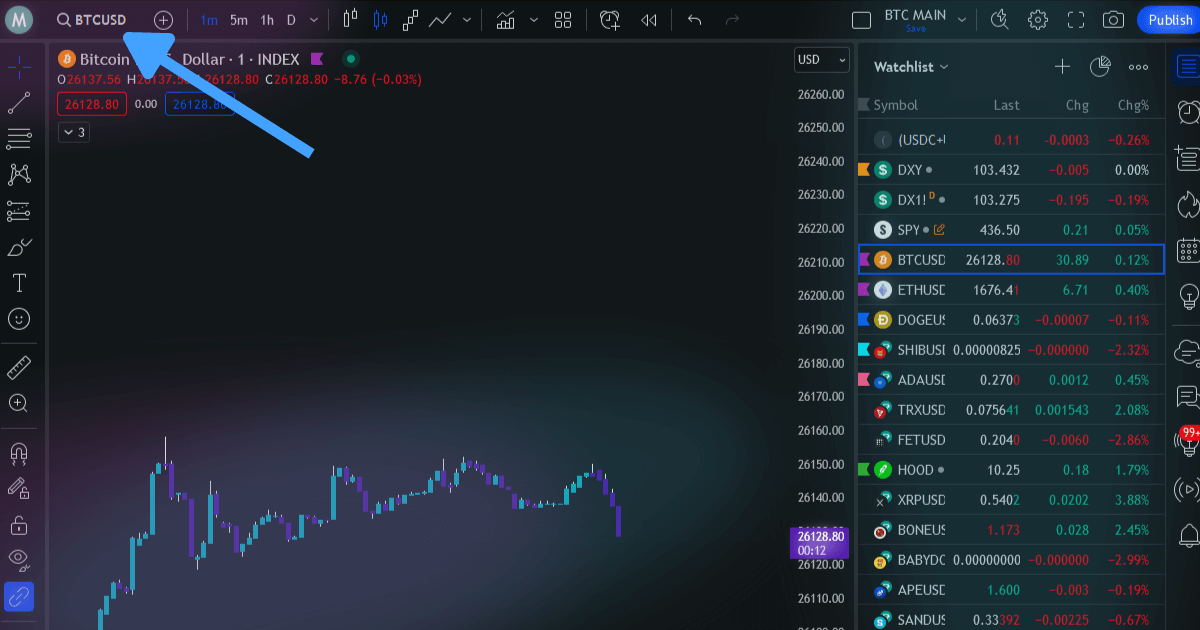
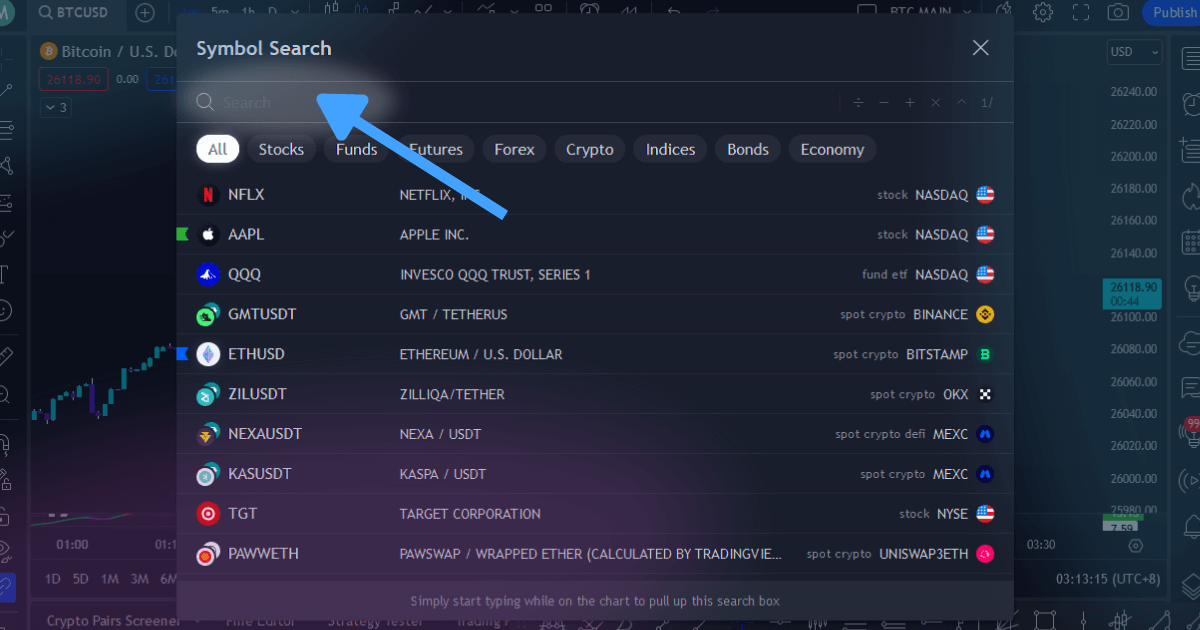
To adjust the chart's symbol, tap the upper left area showcasing the active chart identifier.
Info
Alternatively, just key in the desired symbol using your keyboard.
By selecting it, you'll be presented with a search option for distinct symbols. Filters by market or exchange are also available for a refined search.
Changing The Timeframe
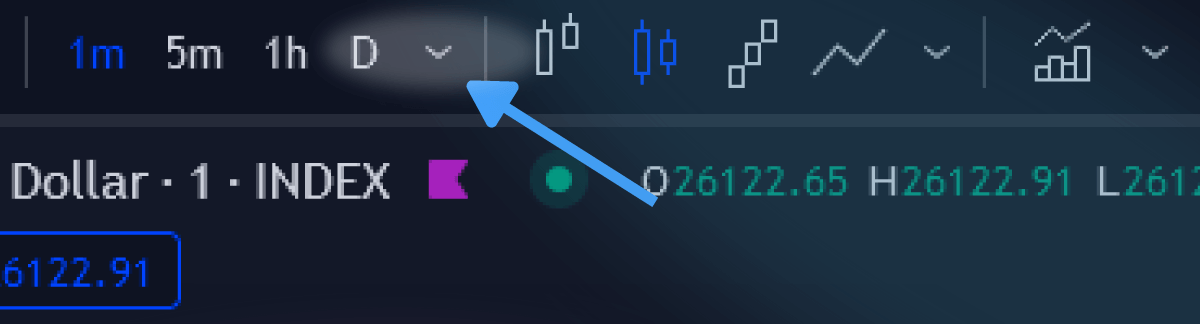
The time interval governs how often a fresh candle appears on the display. To modify your chart's time interval, simply tap the section next to the ticker label and choose your preferred duration.
Info
Directly keying in the desired time interval on your keyboard is another quick alternative.
Adding Indicators To The Chart
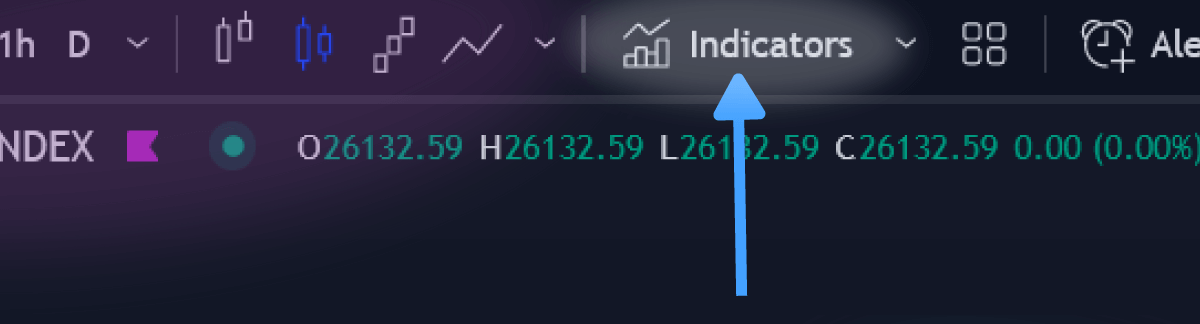
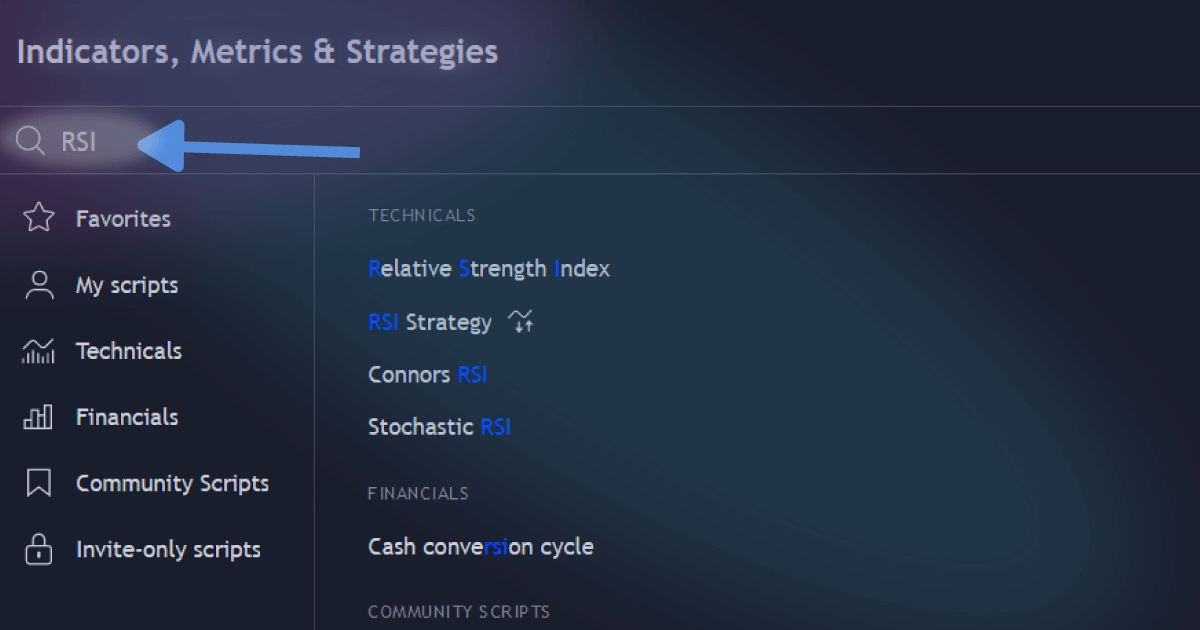
Hit the "Indicators" icon atop the chart to reveal a dropdown menu. Look for your desired indicator and tap on it to incorporate it into the chart.
Preserving Your Chart Configuration
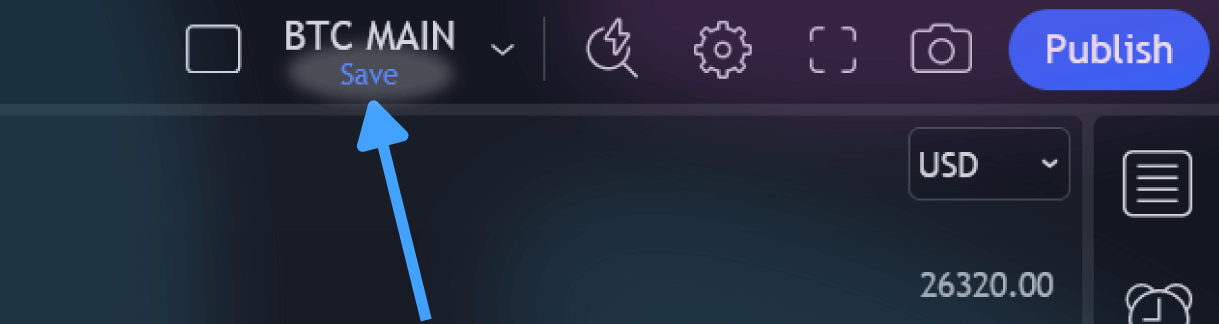
TradingView enables you to curate, eliminate, and store chart configurations. After any alteration to a layout, saving becomes imperative. Simply click on the cloud icon situated at the chart's upper right corner.
Info
A swift method to store your chart setup is by pressing ctrl + s (or cmd + s for macOS users) on your keyboard.