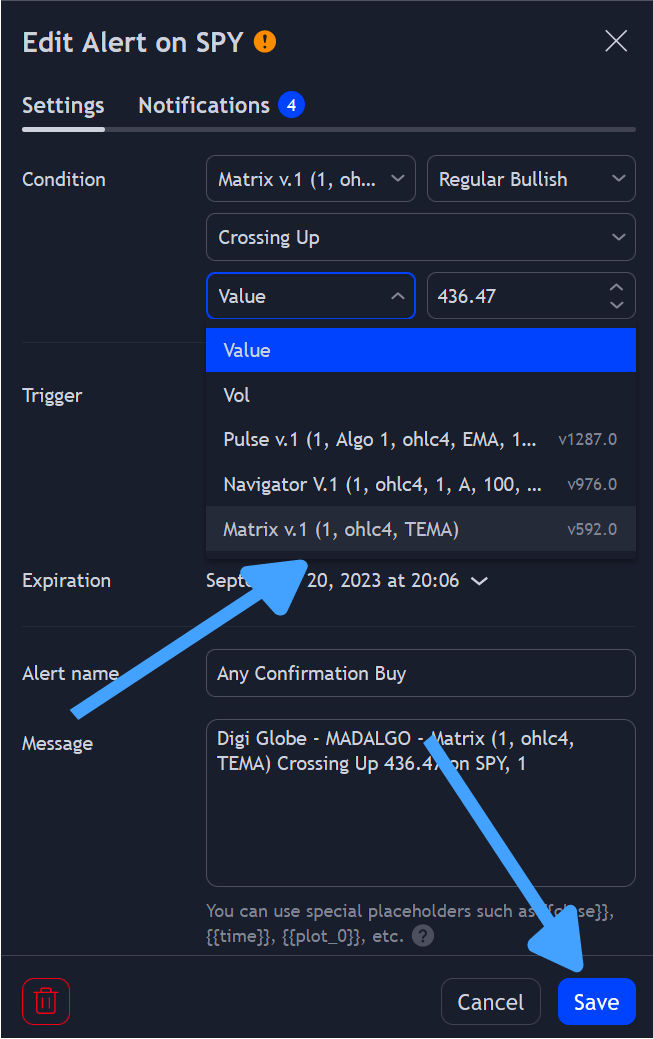
Alerts can be set up based on user-defined conditions, such as intersections between two indicators, price deviations from a channel, and more. Once these conditions are met, users can receive notifications through mobile alerts, emails, SMS, or other channels via webhooks.
Setting Up an Alert
To set up an alert:
- Tap the alert icon at the chart's top.

- Use the alert manager.
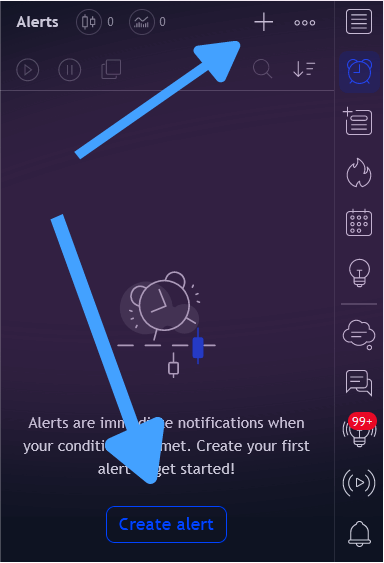
- Use shortcuts: ALT + A (Windows) or ⌥ + A (Mac).
Defining Trigger Conditions
The conditions menu lets users determine when an alert should activate. This involves picking indicators and establishing rules for the alert's initiation. One dropdown menu refines the alert's exact triggering conditions, while another manages the elements or plots defining those conditions.
Info
Indicators produce plots, visual elements essential for defining alert conditions. These plots visualize value sequences, conditions, and so on. Some indicators might produce multiple plots.
Custom Alert Conditions Explained:
Intersecting Conditions
Alerts users when two chosen elements overlap.
Three crossing conditions are available, Crossing, Crossing Up, Crossing Down.
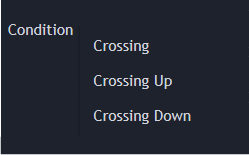
Crossing notifies about any overlaps between two specified plots or values.
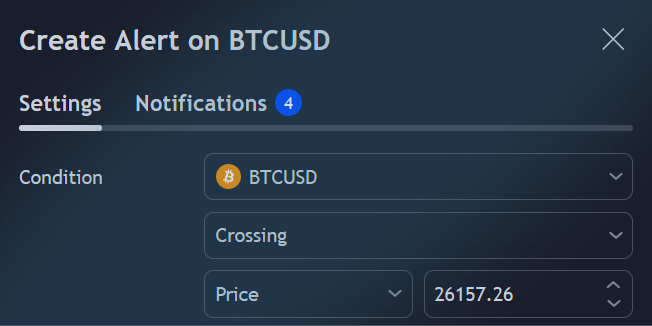
Crossing Up activates when the primary chosen element overlaps the secondary one.
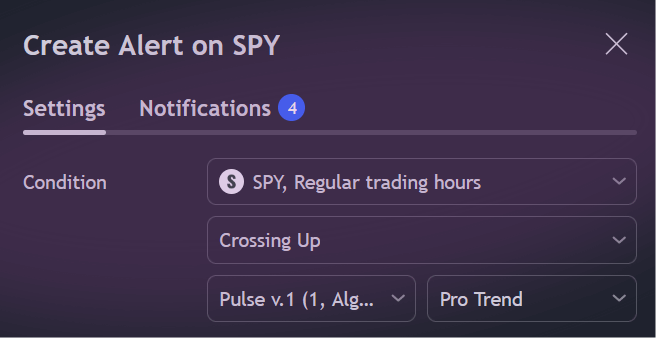
Crossing Down signals when the first selected element is surpassed by the second.
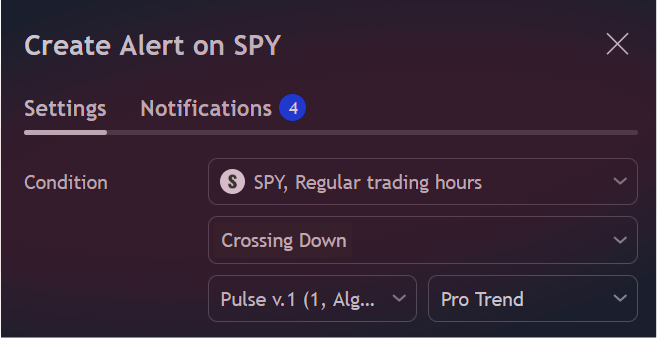
Channel Dynamics
Entering Channel activates when the first element surpasses an upper limit or falls below a lower threshold.
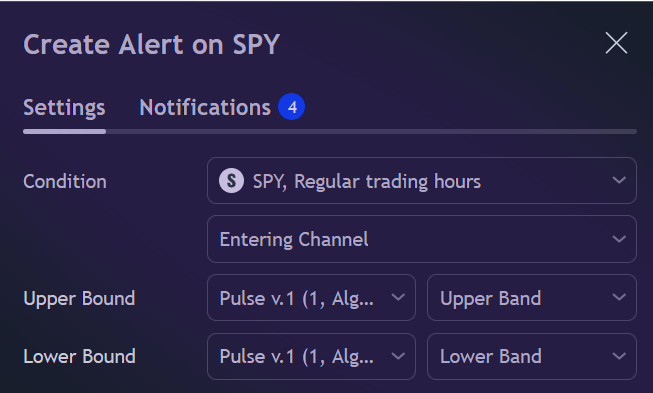
Exiting Channel signals when the primary element crosses an upper limit or drops beneath a lower one.
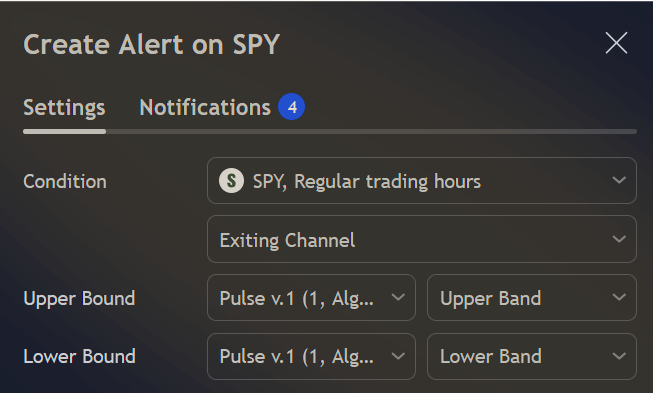
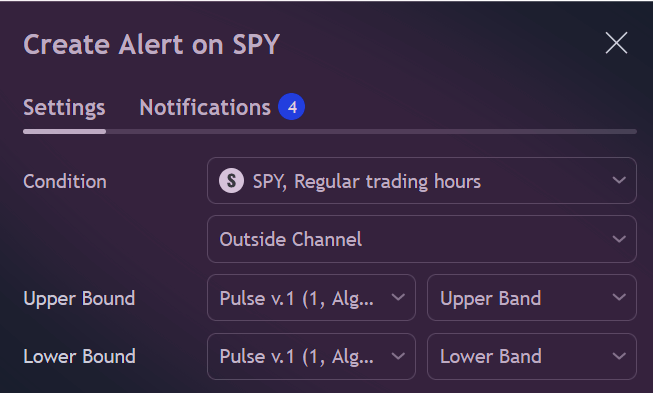
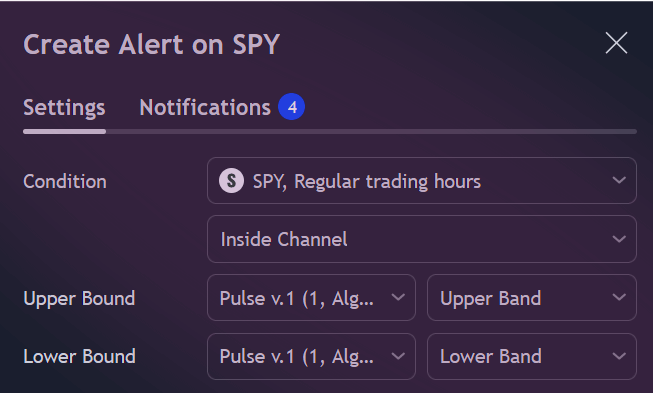
Outside/Inside Channel notifies if an element is either beyond or within set boundaries.
Value Comparisons
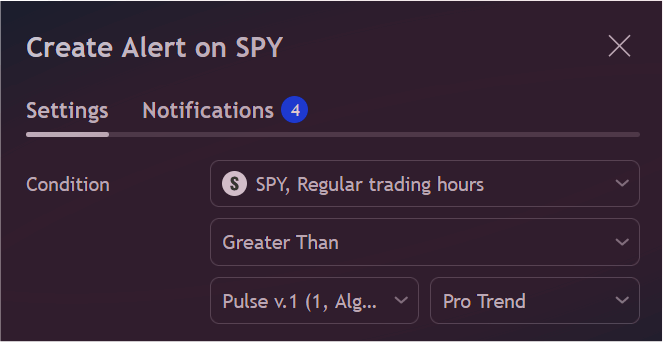
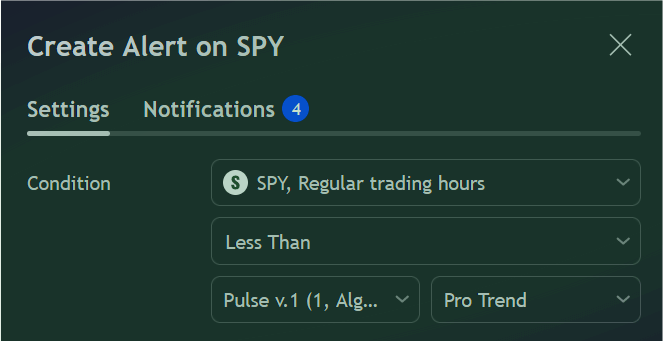
Greater/Less Than activates when an element surpasses or falls short of another element or specific value.
Placeholder Utility
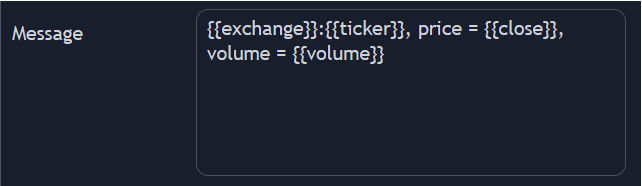
Placeholders return a variable's value in an alert message. This can represent a symbol's closing price ({{close}}), an alert's timeframe ({{interval}}), or an indicator's value using {{plot("Name")}}, where "Name" denotes the desired plot value. However, only the first 22 indicator plots can be utilized as placeholders.
Info
Note: Ensure plot("Name") is included in the chosen alert condition's indicator.
Alert Warning
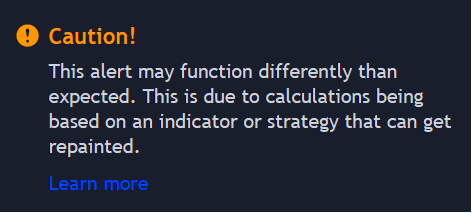
Setting up an alert with certain indicators, like the MADALGO Signals & Overlays, might prompt a warning. This is due to internal Pinescript functions that can potentially repaint under specific configurations. However, MADALGO alerts remain consistent; thus, you can proceed without hesitation.
However, MADALGO alerts remain consistent; thus, you can proceed without hesitation.
Managing Your Alerts
Navigate to the alerts manager to oversee your active alerts. This panel lets you set up, dismiss, halt, restart, duplicate, locate, organize, and modify alerts. Access it by clicking the bell icon on the chart's top-left.
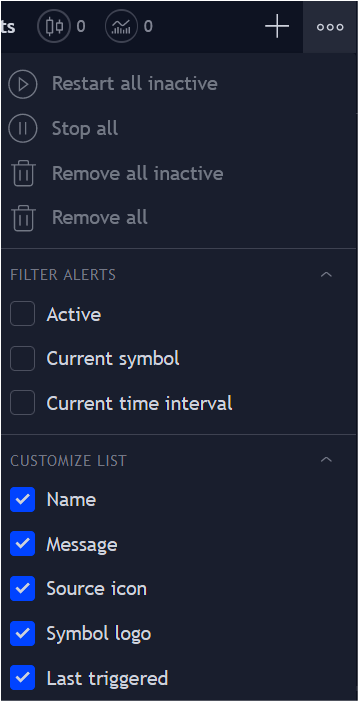
To clear all alerts, click the three-dot icon near the "add alert" symbol and choose "remove all".
More on alert management can be found here.
Alert Updates
Remember, if an indicator's configuration changes post-alert setup, the alert still operates based on previous settings. To modify an alert, head to the alerts manager, select edit.
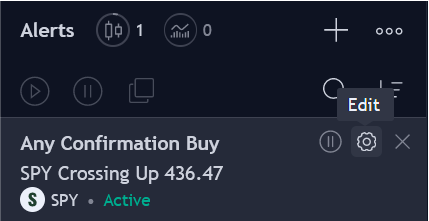
Then pick the secondary indicator matching the original alert's name and save your changes.