MADALGO Navigator is the second key component of the toolkit offered by MADALGO, offering a wide spectrum of price action related tools, zone & divergence finders, and much more. It equips traders with precisive tools to make enhanced trading decisions based on the current market structure. Provided below are the pages describing each of the features in the main indicator in detail:
Features
» Institutional Liquidity Zones
Main Settings
The MADALGO Navigator like the Pulse presents an array of settings influencing its behavior and visual aspects. These settings are specific to their corresponding features and are elaborated on their respective pages. The indicator comprises multiple sections for settings. The foundational settings are detailed in the subsequent sections:
Source
The "Source" setting in MADALGO Navigator is a critical choice that determines the specific price data used for calculations in various features of the indicator. It offers options such as "open," "high," "low," "close," and "OHLC4" (the average of open, high, low, and close prices). Selecting the appropriate source is essential, as it directly impacts the accuracy and relevance of the insights provided by the indicator. Different features may require different sources to generate meaningful signals and trend analysis.
Lookback
The "Lookback" setting allows users to define the number of past data points considered when calculating various indicators and analysis tools within the MADALGO Navigator. By adjusting the lookback period, traders can control the responsiveness of indicators to recent price movements. Shorter lookback periods result in indicators that react quickly to market changes, potentially generating more frequent signals. Conversely, longer lookback periods provide a smoother view of trends but may lag behind rapid price shifts. Selecting an optimal lookback period involves finding the right balance between timely signals and reliable trend identification.
Trend Intensity
"Trend Intensity" in the MADALGO Navigator refers to the strength and momentum of a prevailing market trend. This concept is assessed using various indicators that analyze price movements over a specified period. A strong trend is characterized by consistent price movements in one direction, while a weaker trend may display more volatility and fluctuations. The trend intensity feature help users identify whether a trend is gaining or losing momentum. Understanding trend intensity assists traders in making informed decisions about position entries, exits, and risk management. It's a valuable tool for gauging the potential duration and magnitude of a trend.
Adjusting Settings
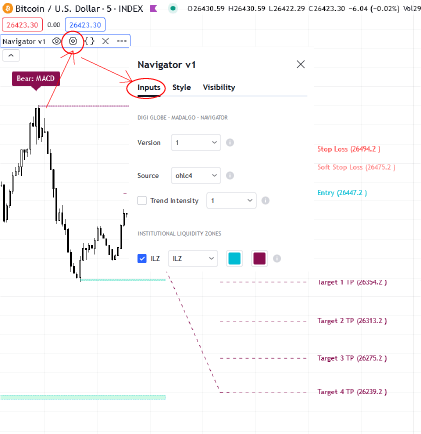
To fine-tune settings, hover your cursor over the indicator title, prompting a list of icons. Click on the gear ⚙️ icon to open the settings panel.
Alternatively, double-click any element displayed by the indicator, be it signals, overlaid indicators, or the dashboard, to access the settings panel.
Style Settings
Every feature is customizable in terms of color, accommodating individual user preferences for a seamless UI/UX experience.